【Flutter】私の考えた最強の構成
あけましておめでとうございます。
新年一発目のブログです。
毎年言ってるけど今年こそアウトプット頑張る。
最近年のせいか、インプットもできなくなってきましたね。。。
言い訳になっちゃうけど、子供ができてからこっちのインプットがなかなかできなくなってきておりますね。
何か小さいことでもいいから新しい事が始められるといいなぁ。
さて、今回のタイトルは「私の考えた最高の構成」なんですが、今作っている個人開発アプリのpubspec.yamlを公開したいと思います。
pubspec.yaml
name: kai_memo
description: "A new Flutter project."
# The following line prevents the package from being accidentally published to
# pub.dev using `flutter pub publish`. This is preferred for private packages.
publish_to: 'none' # Remove this line if you wish to publish to pub.dev

# The following defines the version and build number for your application.
# A version number is three numbers separated by dots, like 1.2.43
# followed by an optional build number separated by a +.
# Both the version and the builder number may be overridden in flutter
# build by specifying --build-name and --build-number, respectively.
# In Android, build-name is used as versionName while build-number used as versionCode.
# Read more about Android versioning at https://developer.android.com/studio/publish/versioning
# In iOS, build-name is used as CFBundleShortVersionString while build-number is used as CFBundleVersion.
# Read more about iOS versioning at
# https://developer.apple.com/library/archive/documentation/General/Reference/InfoPlistKeyReference/Articles/CoreFoundationKeys.html
# In Windows, build-name is used as the major, minor, and patch parts
# of the product and file versions while build-number is used as the build suffix.
version: 1.0.0+1

environment:
  sdk: ^3.9.2

# Dependencies specify other packages that your package needs in order to work.
# To automatically upgrade your package dependencies to the latest versions
# consider running `flutter pub upgrade --major-versions`. Alternatively,
# dependencies can be manually updated by changing the version numbers below to
# the latest version available on pub.dev. To see which dependencies have newer
# versions available, run `flutter pub outdated`.
dependencies:
  flutter:
    sdk: flutter

  # The following adds the Cupertino Icons font to your application.
  # Use with the CupertinoIcons class for iOS style icons.
  cupertino_icons: ^1.0.8
  flutter_riverpod: ^3.1.0
  go_router: ^17.0.1
  firebase_core: ^4.3.0
  cloud_firestore: ^6.1.1
  firebase_auth: ^6.1.3
  freezed: ^3.2.3
  freezed_annotation: ^3.1.0
  riverpod_annotation: ^4.0.0
  json_annotation: ^4.9.0

dev_dependencies:
  flutter_test:
    sdk: flutter

  # The "flutter_lints" package below contains a set of recommended lints to
  # encourage good coding practices. The lint set provided by the package is
  # activated in the `analysis_options.yaml` file located at the root of your
  # package. See that file for information about deactivating specific lint
  # rules and activating additional ones.
  flutter_lints: ^5.0.0
  build_runner: ^2.10.4
  json_serializable: ^6.11.2
  riverpod_generator: ^4.0.0+1
  go_router_builder: ^4.1.3

# For information on the generic Dart part of this file, see the
# following page: https://dart.dev/tools/pub/pubspec

# The following section is specific to Flutter packages.
flutter:

  # The following line ensures that the Material Icons font is
  # included with your application, so that you can use the icons in
  # the material Icons class.
  uses-material-design: true

  # To add assets to your application, add an assets section, like this:
  # assets:
  #   - images/a_dot_burr.jpeg
  #   - images/a_dot_ham.jpeg

  # An image asset can refer to one or more resolution-specific "variants", see
  # https://flutter.dev/to/resolution-aware-images

  # For details regarding adding assets from package dependencies, see
  # https://flutter.dev/to/asset-from-package

  # To add custom fonts to your application, add a fonts section here,
  # in this "flutter" section. Each entry in this list should have a
  # "family" key with the font family name, and a "fonts" key with a
  # list giving the asset and other descriptors for the font. For
  # example:
  # fonts:
  #   - family: Schyler
  #     fonts:
  #       - asset: fonts/Schyler-Regular.ttf
  #       - asset: fonts/Schyler-Italic.ttf
  #         style: italic
  #   - family: Trajan Pro
  #     fonts:
  #       - asset: fonts/TrajanPro.ttf
  #       - asset: fonts/TrajanPro_Bold.ttf
  #         weight: 700
  #
  # For details regarding fonts from package dependencies,
  # see https://flutter.dev/to/font-from-package
flutterバージョンは3.38.5を使っています。
まだ作っている途中なので今後変わっていく可能性はありますが、一旦こんな感じで作り始めようかと思っています。
実装完了したらコードも公開したいなと思いますし、作成途中の状況とかもここで報告できたらいいなと思っていますので、よかったら追いかけてみてください。
flutter使ってみたいなと思っている方の入門編としていいかなと思います。
なるべく難しいコードを書かないようにしたいが私のモットーでありますので、読みやすいコードを目指していきたいと思います!
それでは本年もよろしくお願い致します。
Gemini CLIにアプリ作ってもらいました!
こんにちは。
今日はGemini CLIにアプリを作ってもらった話をしようかと思います。
まずはGemini CLIのインストール。
Gemini CLIについてはこちらの方の記事を参考にインストールしました。
ターミナル上で対話型で使って行きます。
最初に、私のPCにない開発環境を作ってもらおうとしたのですが、その環境を作る為のスクリプトが対話型だと難しいみたいです。
flutterの環境は私のPCに既にあったので、flutterでアプリを作ってもらうことにしました。
次にこんなプロンプトでアプリを作ってもらいました。
flutterでゲームを作ってほしいです。flameを使用してください。バージョンは現時点で最新にしてほしいです。ランダムに表示された1〜
  25までの数字を順番にタップして消していくミニゲームがほしいです。
と、お願いしてみたところ、一発で結構それなりのものを作ってくれました。
プロジェクトの作成からファイルの編集までやってくれます。
Geminiたんにflutter runコマンドを使われると、対話ができなくなるので次の入力ができなくて困ってしまうのですが、これは何かやり方があるのだろうか。。。?
作成してもらったアプリを起動して、実際にプレイしつつUIをちょっと手直ししてもらったりして完成したものがこちらです。
私は1つもプログラムを書いていません。
そして、出来上がったゲームはこちらです。
ぜひ遊んでみてください。
1をタップするとゲームスタートです。
1〜25まで順番にタップしていってください。
どうですか。
なかなかですよね。
指示を出すだけでゲームが作れてしまいました。
もっと色々いじって遊んでみようと思います。
CupertinoTabScaffoldとgo router
こんにちは。
CupertinoTabScaffoldとGoRouterの組み合わせでちょっとはまったので、書いておこうと思います。
ちなみに、GoRouter Builderも使っています。
最初に動かなかったコード。
import 'package:flutter/cupertino.dart';
import 'package:go_router/go_router.dart';

class CustomTabView extends StatelessWidget {
  const CustomTabView({
    super.key,
    required this.children,
    required this.navigationShell,
  });

  final StatefulNavigationShell navigationShell;
  final List<Widget> children;

  @override
  Widget build(BuildContext context) {
    return CupertinoTabScaffold(
      tabBar: CupertinoTabBar(
        items: const [
          BottomNavigationBarItem(
            icon: Icon(CupertinoIcons.home),
            label: 'ホーム',
          ),
          BottomNavigationBarItem(
            icon: Icon(CupertinoIcons.calendar),
            label: '履歴',
          ),
        ],
      ),
      tabBuilder: (context, index) {
        return CupertinoTabView(
          builder: (context) {
            return children[index];
          },
        );
      },
    );
  }
}
次に動いたコード。
import 'package:flutter/cupertino.dart';
import 'package:go_router/go_router.dart';

class CustomTabView extends StatelessWidget {
  const CustomTabView({
    super.key,
    required this.children,
    required this.navigationShell,
  });

  final StatefulNavigationShell navigationShell;
  final List<Widget> children;

  @override
  Widget build(BuildContext context) {
    return CupertinoTabScaffold(
      key: ValueKey(navigationShell.currentIndex),
      tabBar: CupertinoTabBar(
        onTap: (index) {
          navigationShell.goBranch(index);
        },
        currentIndex: navigationShell.currentIndex,
        items: const [
          BottomNavigationBarItem(
            icon: Icon(CupertinoIcons.home),
            label: 'ホーム',
          ),
          BottomNavigationBarItem(
            icon: Icon(CupertinoIcons.calendar),
            label: '履歴',
          ),
        ],
      ),
      tabBuilder: (context, index) {
        return CupertinoTabView(
          builder: (context) {
            return children[index];
          },
        );
      },
    );
  }
}
ここみて実装したのですが、動かずonTapの存在に気づいてなんとか動かすことができました。
CupertinoTabScaffold+GoRouter使いた方はぜひ参考にしてみてくださいー!
iosのuniversal linkが動かなかった時の話
こんにちは。
先日、お仕事でuniversal linkについて調べていた時のことでした。
flutterアプリにuniversal linkを導入しようと試みたのですが、どうにも動かなくて3日はまってしまいました。
flutterにuniversal linkを導入する手順がここに書かれています。
apple-app-site-associationはfirebase hostingにホストしていました。
このサービスを使うと、apple-app-site-associationが登録されたかどうかはわかります。
ここに登録されたことは確認済みでした。
動かなかった原因は2つあります。
まず、apple-app-site-associationをホストしたドメインと同じドメインから遷移させようとしていたことです。
これはindexが開いてしまい、うまくアプリに飛んでいかなかったです。
もう1つは、Capabilityを追加する環境を間違えていたことです。
何も考えずにXcodeからAssociated Domainsを追加していたのですが、Profileにしか追加していなかったようです。
debugビルドで確認していたので、Associated Domainsの設定が効いていなかったようです。
docs.flutter.dev この画像と同じようにALLでつけないといけなかったんですね。
そんなこんなでやっと動きました。
しかし、今回の要件ではリダイレクトで使いたいということでした。
リダイレクトを試したみたところ、すんなりアプリに遷移できず結局使うことはなかったです。
そんなこんなで検証に3日もついやしちゃいました。
Lynxによるモバイルアプリ開発の特長とは
こんにちは。
最近、マルチプラットフォームフレームワークのLynxが気になっております。
Lynxにはどんな特徴があるのかGrokに聞いてみました!
主な特徴
ウェブ技術の活用:
HTMLとCSSに近いAPIを提供し、ウェブ開発者がモバイルアプリ開発に簡単に移行できるように設計されています。

UIはLynxエンジンによって各プラットフォームのネイティブAPIに変換されるため、Flutterのように独自の描画エンジンでUIをレンダリングするのではなく、React Nativeに近いアプローチを取っています。

レイアウトの柔軟性:
Flexbox、Grid、Linear、Relativeといった多様なレイアウトオプションをサポート。

特にGridレイアウトはReact Nativeにはない機能で、レスポンシブデザインに強みを発揮します。

パフォーマンスと軽量性:
プリミティブなAPIを中心に構成されており、軽量で高速な動作が特徴。

Rspeedy(Rspackベースのビルドツール)によりビルド時間が短縮されています。

拡張性:
Native Module機能があり、Lynxが標準で提供しないネイティブ機能も独自に追加可能。

制限と課題:
初期段階ではプリミティブなAPIのみ提供されており、必要な機能を自分で実装する必要がある場合があります。

React Nativeのような「Continuous Native Generation」の仕組みはないため、iOS/Androidのプロジェクト設定を手動で調整する必要があります。
ということみたいです。
ビルド時間の短縮はありがたいですね!
またCSSが使えるので表現力に幅がでそうですね。
サンプルアプリを見た感じ、テキストの間にアイコン挟んだり、いろんなパターンのグラデーションが使えたり、アプリのデザインにこだわりたい場合に良さそうです。
さて、マルチプラットフォームと言えば他にも色々ありますよね。
他ツールとの違いはなんでしょう。
これもGrokに聞いてみました。
他のフレームワークとの違い
React Nativeとの比較: React Nativeと似たネイティブAPI呼び出し型のアプローチですが、LynxはGridレイアウトや独自の最適化(例: 高速ビルド)が強み。一方で、エコシステムはまだ成熟しておらず、React Nativeほどの豊富なライブラリやコミュニティサポートはありません。

Flutterとの比較: FlutterがSkiaエンジンでUIを描画するのに対し、LynxはネイティブUIに依存するため、より軽量でプラットフォーム固有の挙動に忠実。ただし、カスタマイズ性ではFlutterが上回る場合も。

Ionic/Cordovaとの比較: ウェブビューを使用するこれらのフレームワークと異なり、LynxはネイティブUIを描画するため、パフォーマンスが優れています。
とのことです。
まだまだコミュニティが成熟していないということ、Flutterよりカスタマウズに劣るということですね。
とにかくパフォーマスに優れているということが優位点という感じですかね。
普段、Flutterでアプリを作るお仕事をしているのですが、やっぱり気になるのはビルド時間が長い。
これが早くなると嬉しいですよね。
とにかく使ってみないことには始まらない。
Grokさんに開発環境のセットアップ方法を聞いてみました。
必要なのはnodeのv16以上とのこと。
すでにnode v19が入っていたのですが、npmが古くてアップデートしなくてはいけなかったのですが、最新バージョンとの互換性がないとのことでnodeのバージョンも上げました。
$ node -v
v22.14.0
$ npm -v
11.2.0
作業ディレクトリを作成し、
 $ npx create-rspeedy
  Need to install the following packages:
   create-rspeedy@0.8.3
  Ok to proceed? (y)


◆  Create Rspeedy Project
│
◇  Project name or path
│  my-first-project
│
◇  Select language
│  TypeScript
│
◇  Select additional tools (Use <space> to select, <enter> to continue)
│  none
│
◇  Next steps ─────────────╮
│                          │
│  1. cd my-first-project  │
│  2. git init (optional)  │
│  3. npm install          │
│  4. npm run dev          │
│                          │
├──────────────────────────╯
│
└  All set, happy coding!
こんな感じで色々聞かれるので答えるとプロジェクトができあがります。
ガイドの通りにプロジェクトのディレクトリへ移動し、npm install後npm run devするとローカルでサーバーが立ち上がります。
アプリをシミュレータでみるには、 Lynx Explorerを使います。
AndroidとiOSの Lynx Explorerが配布されています。
使いたい方の Lynx Explorerを公式サイトからDLしてきます。
これをシミュレータ上D&Dします!
私はiOSシミュレータを使いました。
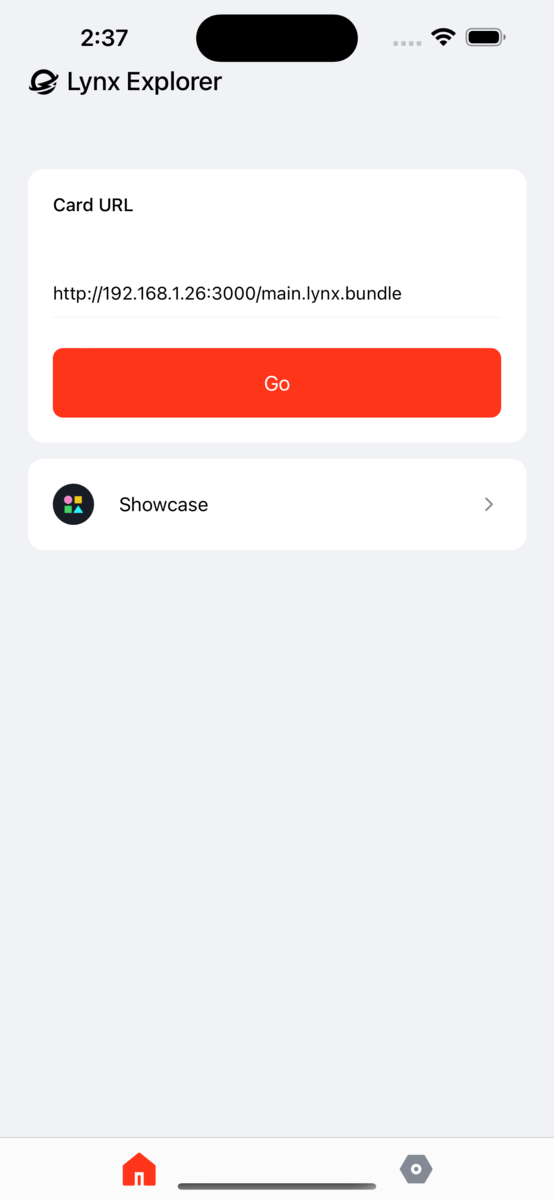
すると、最初の画面が出てきます。
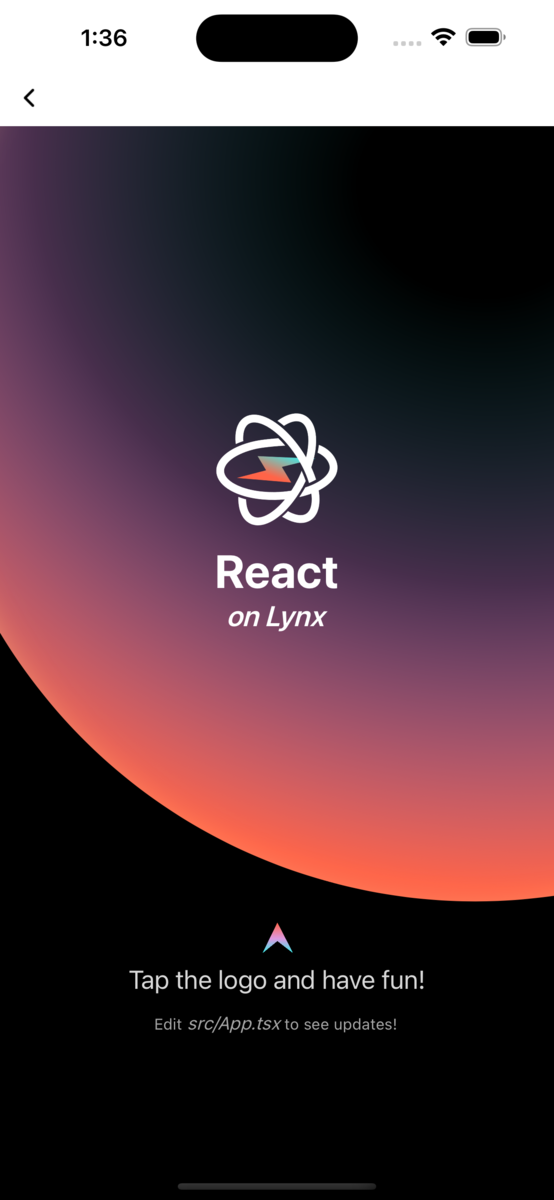
この真ん中のロゴ画像なのですが、実は常にアニメーションしているのですが、これはCSSでアニメーションさせているみたいです。
.Logo--lynx {
  width: 100px;
  height: 100px;
  animation: Logo--shake infinite 0.5s ease;
}
これは便利ですね。
ちょっとしたアニメーションがあるとちょっと良さげなアプリができますね。
これから色々いじっていこうかと思います。 またいつか後日談書きたいと思いますー!
【Flutterやろうよ!】初級編 その6〜ボトムメニュー その2〜
今回は、BottomNavigationBarで画面の切り替えをしたいと思います!
まずは3つ画面を用意しておきます。
import 'package:flutter/material.dart';

class Screen01 extends StatelessWidget {
  const Screen01({super.key});

  @override
  Widget build(BuildContext context) {
    return Scaffold(
      appBar: AppBar(
        title: Text('ホーム'),
      ),
      body: Center(
        child: Text(
          'ホーム画面',
          style: TextStyle(
            fontSize: 24,
            fontWeight: FontWeight.bold,
          ),
        ),
      ),
    );
  }
}
簡単にこんな感じの画面を3つ(タブの数だけ)用意します。
次に、タブ画面のあるクラスに表示したい画面のリストを作成します。
  final _screens = [
    const Screen01(),
    const Screen02(),
    const Screen03(),
  ];
BottomNavigationBarのonTapで切り替わったタブのindexが取得できるので、
    onTap: (index) {
          setState(() {
            _currentIndex = index;
          });
        },
こんな感じでindexを書き換えているかと思います。
では画面の切り替えはどうするかといいますと。
body: _screens[_currentIndex],
Scaffoldのbodyに選択中のindexに該当する画面を渡してあげます。
全体のコードはこうなります。
import 'package:blog_sample/views/sample05/screen01.dart';
import 'package:blog_sample/views/sample05/screen02.dart';
import 'package:blog_sample/views/sample05/screen03.dart';
import 'package:flutter/material.dart';

class Sample05 extends StatefulWidget {
  const Sample05({super.key});

  @override
  State createState() => _State();
}

class _State extends State<Sample05> {
  final _screens = [
    const Screen01(),
    const Screen02(),
    const Screen03(),
  ];

  int _currentIndex = 0;

  @override
  Widget build(BuildContext context) {
    return Scaffold(
      body: _screens[_currentIndex],
      bottomNavigationBar: BottomNavigationBar(
        onTap: (index) {
          setState(() {
            _currentIndex = index;
          });
        },
        currentIndex: _currentIndex,
        items: const <BottomNavigationBarItem>[
          BottomNavigationBarItem(
            icon: Icon(Icons.home),
            activeIcon: Icon(Icons.home, color: Colors.blue),
            label: 'ホーム',
          ),
          BottomNavigationBarItem(
            icon: Icon(Icons.business),
            activeIcon: Icon(
              Icons.business,
              color: Colors.blue,
            ),
            label: 'ビジネス',
          ),
          BottomNavigationBarItem(
            icon: Icon(Icons.school),
            activeIcon: Icon(Icons.school, color: Colors.blue),
            label: '学校',
          ),
        ],
      ),
    );
  }
}
これで画面の切り替えができるようになりましたね!
これでいい感じの複数画面をタブで切り替えるアプリが作れるようになりました!
中の画面はお好きなように作ってみてください!
【Flutterやろうよ!】初級編 その5〜ボトムメニュー〜
こんにちは。
本日は、BottomNavigationBarというのを作って行こうと思います。
日常的にアプリを使っているとよく目にするViewだと思います。
こんなの。
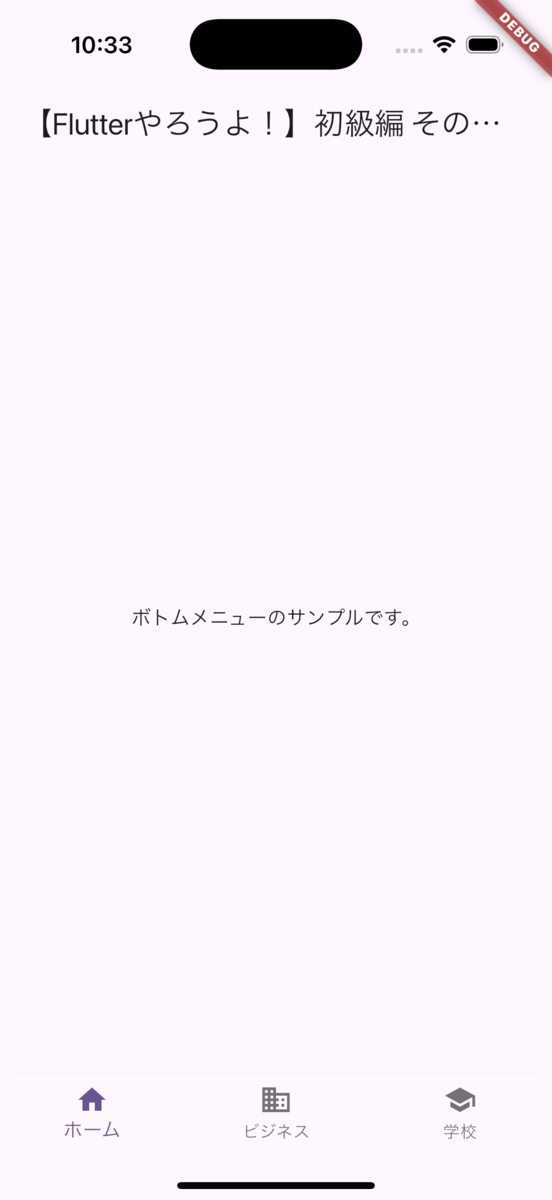
これを今日は作って行きたいと思います。
まずは、基本のコードはこれ。
import 'package:flutter/material.dart';

class Sample05 extends StatefulWidget {
  const Sample05({super.key});

  @override
  State createState() => _State();
}

class _State extends State<Sample05> {
  @override
  Widget build(BuildContext context) {
    return Scaffold(
      appBar: AppBar(
        title: Text('【Flutterやろうよ!】初級編 その5〜ボトムメニュー〜'),
      ),
      body: const Center(
        child: Text(
          'ボトムメニューのサンプルです。',
        ),
      ),
      bottomNavigationBar: BottomNavigationBar(
        items: const <BottomNavigationBarItem>[
          BottomNavigationBarItem(
            icon: Icon(Icons.home),
            label: 'ホーム',
          ),
          BottomNavigationBarItem(
            icon: Icon(Icons.business),
            label: 'ビジネス',
          ),
          BottomNavigationBarItem(
            icon: Icon(Icons.school),
            label: '学校',
          ),
        ],
      ),
    );
  }
}
毎度同じみScaffoldに、bottomNavigationBarという引数が渡せます。
ここにBottomNavigationBar()WIdgetを渡してあげます。
BottomNavigationBar()のitemsにタブとして表示したいアイテムをリストで渡してあげます。
ここでは、ホーム、ビジネス、学校という3つのタブを用意しました。
Iconsには様々なアイコンが揃っていますので、いろいろ試してみてください。
また、BottomNavigationBarItemにも色を変える為の引数がありますので、ここもいろいろいじってどうなるか遊んでみてください!
さて、これだけではタブを切り替えても画面が変わらないですね。
したのタブのボタンをタップしたら画面が変わるようにしていきましょう。
import 'package:flutter/material.dart';

class Sample05 extends StatefulWidget {
  const Sample05({super.key});

  @override
  State createState() => _State();
}

class _State extends State<Sample05> {
  int currentIndex = 0;

  @override
  Widget build(BuildContext context) {
    return Scaffold(
      appBar: AppBar(
        title: Text('【Flutterやろうよ!】初級編 その5〜ボトムメニュー〜'),
      ),
      body: Center(
        child: Text(
          'ボトムメニューのサンプルです。\n$currentIndex番目の画面',
        ),
      ),
      bottomNavigationBar: BottomNavigationBar(
        onTap: (index) {
          setState(() {
            currentIndex = index;
          });
        },
        currentIndex: currentIndex,
        items: const <BottomNavigationBarItem>[
          BottomNavigationBarItem(
            icon: Icon(Icons.home),
            activeIcon: Icon(Icons.home, color: Colors.blue),
            label: 'ホーム',
          ),
          BottomNavigationBarItem(
            icon: Icon(Icons.business),
            activeIcon: Icon(
              Icons.business,
              color: Colors.blue,
            ),
            label: 'ビジネス',
          ),
          BottomNavigationBarItem(
            icon: Icon(Icons.school),
            activeIcon: Icon(Icons.school, color: Colors.blue),
            label: '学校',
          ),
        ],
      ),
    );
  }
}
はい、どこが変わったかわかりますか?
まず、int currentIndex = 0;という変数を1つ用意します。
BottomNavigationBar()Widgetに
        onTap: (index) {
          setState(() {
            currentIndex = index;
          });
        },
        currentIndex: currentIndex,
これが追加されています。
onTap(index)タブのボタンがタップされた時に、何番目のタブがタップされたのかを教えてくれる関数です。
ここで、何番目のタブがタップされたのかを先ほど用意したcurrentIndexという変数に代入します。
画面内に「X番目の画面です」と表示する為に、画面を更新する必要があるので、ここではsetState()を使います。
currentIndexには先ほど用意した変数を渡します。
ついでにですが、現在選択されているタブのアイコンを青くするようにしてみました。
ここまで動かせましたでしょうか?

さて、このままでは画面上の文字が変わっただけで画面の切り替えができていませんね。
実際に画面を切り替えるにはどうすればいいかは次回書いて行こうと思います。
